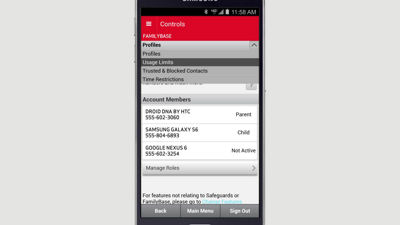
You can set FamilyBase usage limits with the Verizon FamilyBase mobile app, or within My Verizon.
When you launch the app, you'll be taken to the Activity screen. Tap the menu icon in the top left corner, then select "controls." You'll be prompted to sign in using your mobile number, or your My Verizon username and password.
Once signed in, tap the carousel at the top of the page and select the line for which you'd like to set controls, and then tap "Family Base Controls." Tap the arrow to expand the menu, and select "Usage Limits." As you scroll down the page, tap the "Available" tab and you'll see the option to enter, or change a limit for data, minutes, messages and purchases. To stop data usage after the limit has been reached, Check the box. Once done, follow the steps to save.
Once the "Limit" is reached on the number for which limits are set, the Account Owner will be alerted via text message.
To set usage limits from My Verizon, sign in and select "Manage FamilyBase" from the "My Services" menu in the My Verizon navigation. Next, click "Controls" from the FamilyBase menu, then select "Usage Limits."
Expand "How it Works" to get more information about how the controls work. Click the tab for the type of limits you'd like to set, and then click the arrow to expand the line for which you'd like to set controls. You can choose to set no limit, to stop data usage after a limit is met, or allow continued usage after a set limit has occurred and just receive alerts. Alerts will be sent to the designated recipients. Make your selection, and then save your changes.
You can also add additional recipients to the usage alerts below each limit selection.