You can set Always Trusted and Always Blocked contacts to control who your kids can connect with within Verizon FamilyBase. Watch this video to get step by step instructions on how.
| Session Status |
|---|
|
Due to inactivity, your session will end in approximately 2 minutes. Extend your session by clicking OK below. Due to inactivity, your session has expired. Please sign in again to continue. |
How to Set Trusted and Blocked Contacts with Verizon FamilyBase™
(Video Length- 1:16 )
familybase-trusted-blocked-contacts-video: Video Transcript
How to Set Trusted and Blocked Contacts with Verizon FamilyBase™ (1:16)
Setting Trusted and Blocked Contacts With Verizon FamilyBase
You can set Always Trusted and Always Blocked contacts to control who your kids can connect with within Verizon FamilyBase.
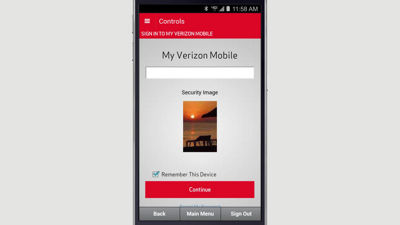
When you launch the app, you'll be taken to the Activity screen. Tap the menu icon in the top left corner, then select Controls. You'll be prompted to sign in using your mobile number, or your My Verizon user name and password.
Once signed in, tap the carousel at the top of the page and select the line you wish to manage, and then tap Family Base Controls. Tap the arrow to expand the menu, and select Trusted & Blocked Contacts.
On the Current tab, you'll see any numbers that you have currently blocked or that are on your Trusted contacts list. Tap the Available tab to add trusted and blocked numbers and then follow the steps to save your changes.
To set Trusted & Blocked contacts from My Verizon, sign in and select Manage FamilyBase from the My Services menu in the My Verizon navigation. Next, click Controls from the FamilyBase menu, then select either Trusted Contactsor Blocked Calls & Contacts. Expand How it Works to get more information about setting these controls. Follow the prompts to make your changes.