Verizon FamilyBase gives you the option to restrict certain times that your kids use their phones. This really comes in handy during school hours, dinner-time, and late at night.
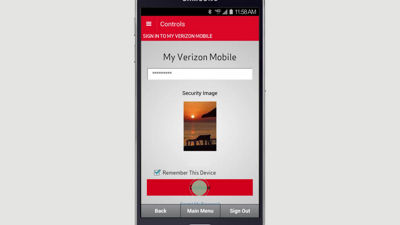
When you launch the app, you'll be taken to the Activity screen. Tap the menu icon in the top left corner, then select "controls." You'll be prompted to sign in using your mobile number, or your My Verizon username and password.
Once signed in, scroll the carousel at the top of the page and select the line you wish to manage, and then tap "Family Base Controls." Tap the arrow to expand the menu, and select "Time Restrictions."
On the "Current" tab, you'll see any restrictions you already have in place. Tap the "Available" tab to set Time Restrictions. Here you can select the time of day, and on what days you want to apply the restrictions. Select "Add More" to add additional restrictions. Follow the prompts to review and save changes. To set Time Restrictions from My Verizon, sign in and select "Manage FamilyBase" from the "My Services" menu in the My Verizon navigation. Next, click "Controls" from the FamilyBase menu, then select "Time Restrictions." Click "Add Restrictions," make your selections, and then save your changes.