Google Pixel Watch 2 - Activate / Set Up Device
Here's how to quickly set up your Pixel Watch 2.
If the Pixel Watch 2 was purchased outside of Verizon, contact us to start a line of service for your device.
- The Pixel Watch 2 is not compatible with Apple® devices.
- The Pixel Watch 2 can be set up via Number Share. To set up with Number Share, the companion smartphone must be activated on the same Verizon account as the watch.
- If you're pairing an existing Pixel Watch 2 with a new Android™ smartphone, refer to Connect to New Phone.
- Before completing the steps below, verify:
- your companion Android smartphone has a cellular or Wi-Fi connection.
- you're in a Verizon coverage area.
- your eSim activation has been processed.
- Ensure the watch is charged and powered on.If necessary, tap the watch display to begin.
- Install the Google Pixel Watch app on the companion Android smartphone via the Google Play™ Store.
- Open theGoogle Pixel Watch app.
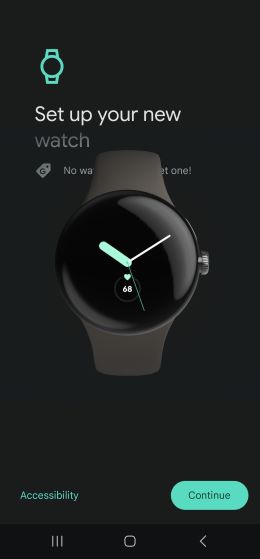
- From the 'Set up your new watch' screen, tapContinue.
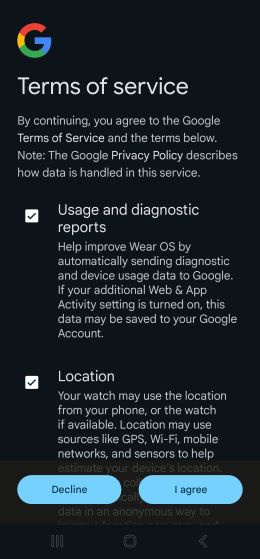
- To continue, from the 'Terms of service' screen, review then tapI agree.
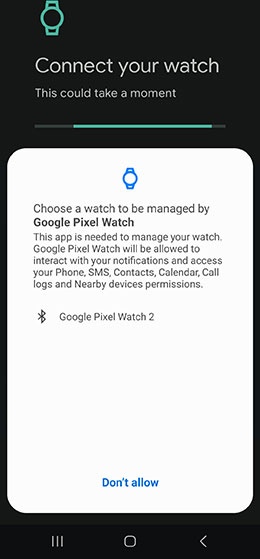
- From the 'Connect your watch' screen, tapGoogle Pixel Watch 2then if prompted, tapAllowto approve the necessary permissions.
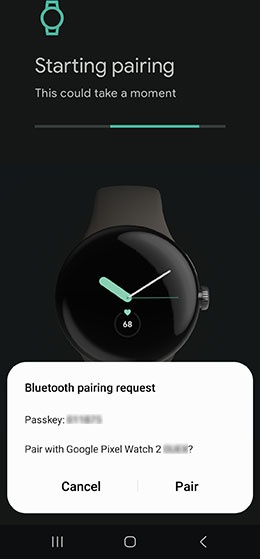
- From the 'Starting pairing' screen, ensure the passkey matches what's displayed on the Pixel Watch 2 then tapPair.
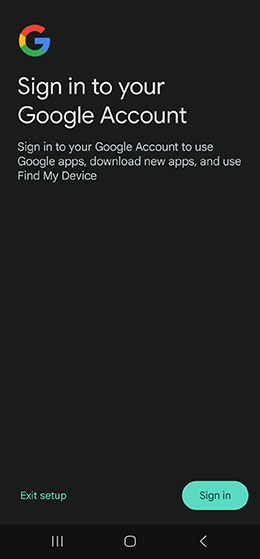
- From the 'Sign in to your Google Account' screen, tapSign inor skip this step.
- From the 'Copy to your watch?' screen, tap 'Copy' or 'Cancel'.
- If prompted, from the 'Verify it's you screen', enter your Google account password then tapNext.
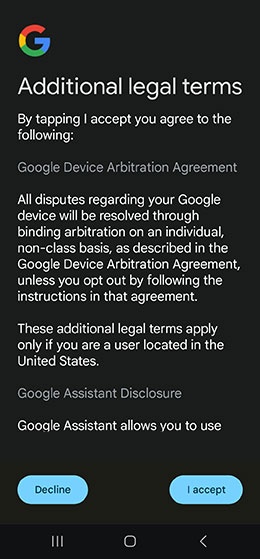
- To continue, review the Additional legal terms then tapI accept.
- From the 'Time to add your watch' screen, tapAdd watch.
- From the 'Welcome to your new Google Pixel Watch' screen, tapNext.
- From the 'Put on your watch' screen, put on your watch as instructed then tapNext.
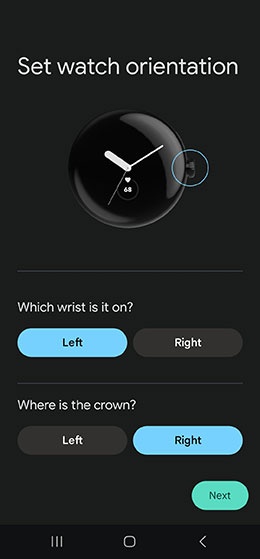
- From the 'Set watch orientation' screen, select desired options then tapNext.
- From the 'Learn how to switch bands' screen, tap 'Next' or 'Not now'.
- From the 'Talk to your watch' screen, tap 'Set up' or 'Skip'.
- From the 'Google partners and services' screen, review the info to learn how your Assistant works with different services then tapNext.
- From the 'You're almost done!' screen, tapContinue.
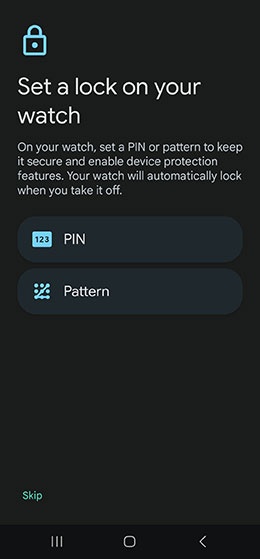
- From the 'Set a lock on your watch' screen, select a lock option for the watch (PIN or pattern) or tap 'Skip'.If skipped, a screen lock can be added later.
- From the 'Get fast, secure access to your everyday essentials' screen, tap 'Set up' or 'Not now'.
- From the 'Select apps for your watch' screen, select desired apps, tapContinueor you can choose to skip this step.
- From the 'Elevate your wellbeing with Fitbit' screen, tap 'Continue' or 'Not now'.
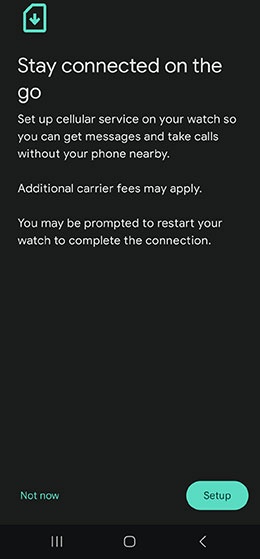
- If your watch is activate on a cellular plan, from the 'Stay connected on the go' screen, tapSet upto add your cellular plan.If your watch isn't activated on a cellular plan, tapNot now. A cellular plan can be added later.
- From the 'Safety signal with Fitbit Premium' screen, tap 'Install Fitbit' or 'Not now'.
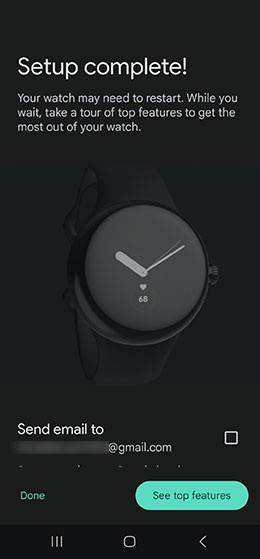
- From the 'Setup complete!' screen, tap 'Done' or 'See top features'.